Custom Roles
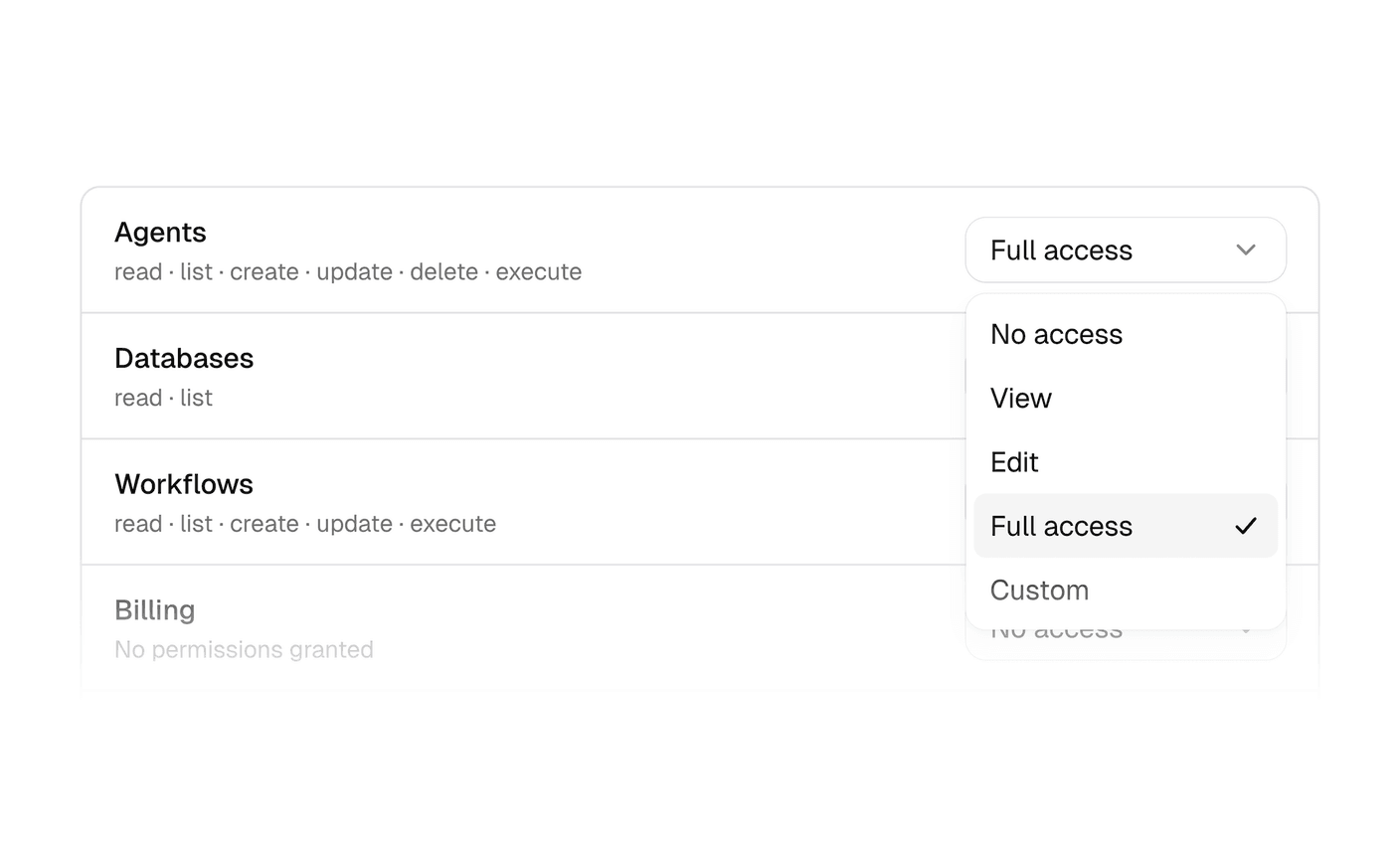
Workspaces now have four system roles: Owner, Admin, Editor, and Member. This replaces the previous Admin/Member split. Most teammates should be an Editor or a Member. Admin is for people who manage the workspace while Owner is designed for a small set of users.
- Owner: full access, including billing, models, members, and roles. Every workspace keeps at least one. Use this for the people who own the workspace.
- Admin: manage members, API keys, environment variables, and usage. Can review roles, but cannot change billing, models, or custom roles. Use this for people who invite teammates and handle day-to-day admin.
- Editor: create and edit agents, workflows, databases, and Drive files. This is the builder seat.
- Member: view and run shared agents and workflows. Cannot create or edit those resources. Use this for people who should run agents without changing them.
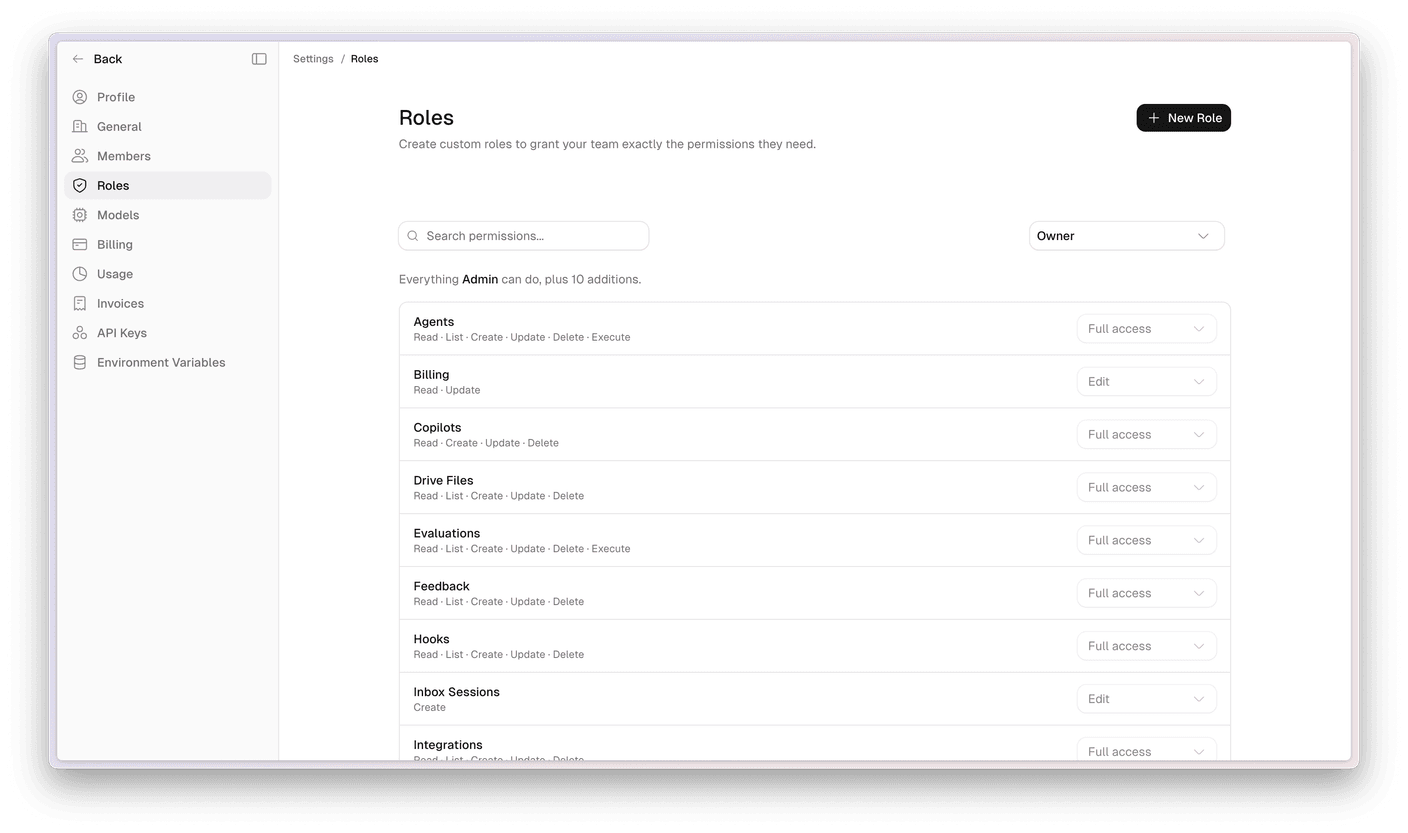
Create a custom role
Owners can create custom roles. Open the workspace switcher, choose Settings, then Roles. Click New Role, pick a Read-only, Editor, or Full access starting point, and adjust permissions from there.
For each resource you can set View, Edit, or Full access. A common example is a support role that can run agents and view Drive, but cannot edit workflows or manage members.
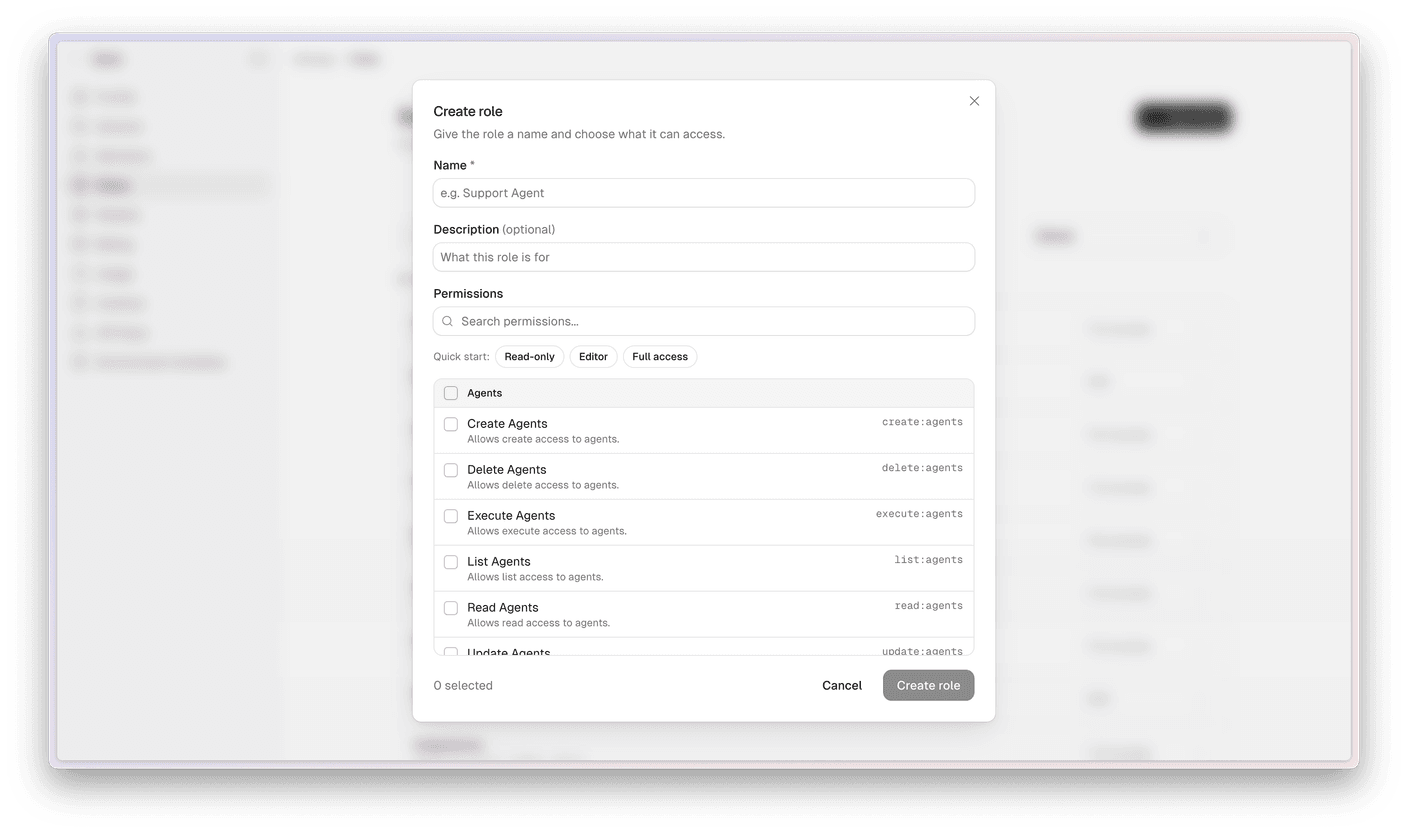
Assign roles
Assign roles from Settings → Members when you invite someone, or later with Edit role. Owners and Admins can assign roles. Only Owners can create or change custom roles.
You cannot change your own role. Ask another Admin or Owner to update it. If you delete a custom role, anyone still assigned it loses those permissions, so move people to another role first.
Log in to Scout and open Settings → Roles if you are an Owner. See the Roles guide for more on permissions and assignment.
Ready to get started?
Book a demo or chat live with a Scout engineer.